AI Assistant
The AI Assistant is a chat panel that helps with models, formulas and verification results, next to the panels described in Model Definition, Verification Formula and Verification Results.
It receives the current logic, model text, formula, results, trace, the synthesized strategy of the selected ATL* result (see Strategy for ATL*), and any state or path selected on the Visual Graph. Answers are grounded in that context: the assistant must not invent states or transitions that are not in your model.
The AI assistant requires a live connection and server-side AI routes. Model editing and verification work without it.
Opening the panel
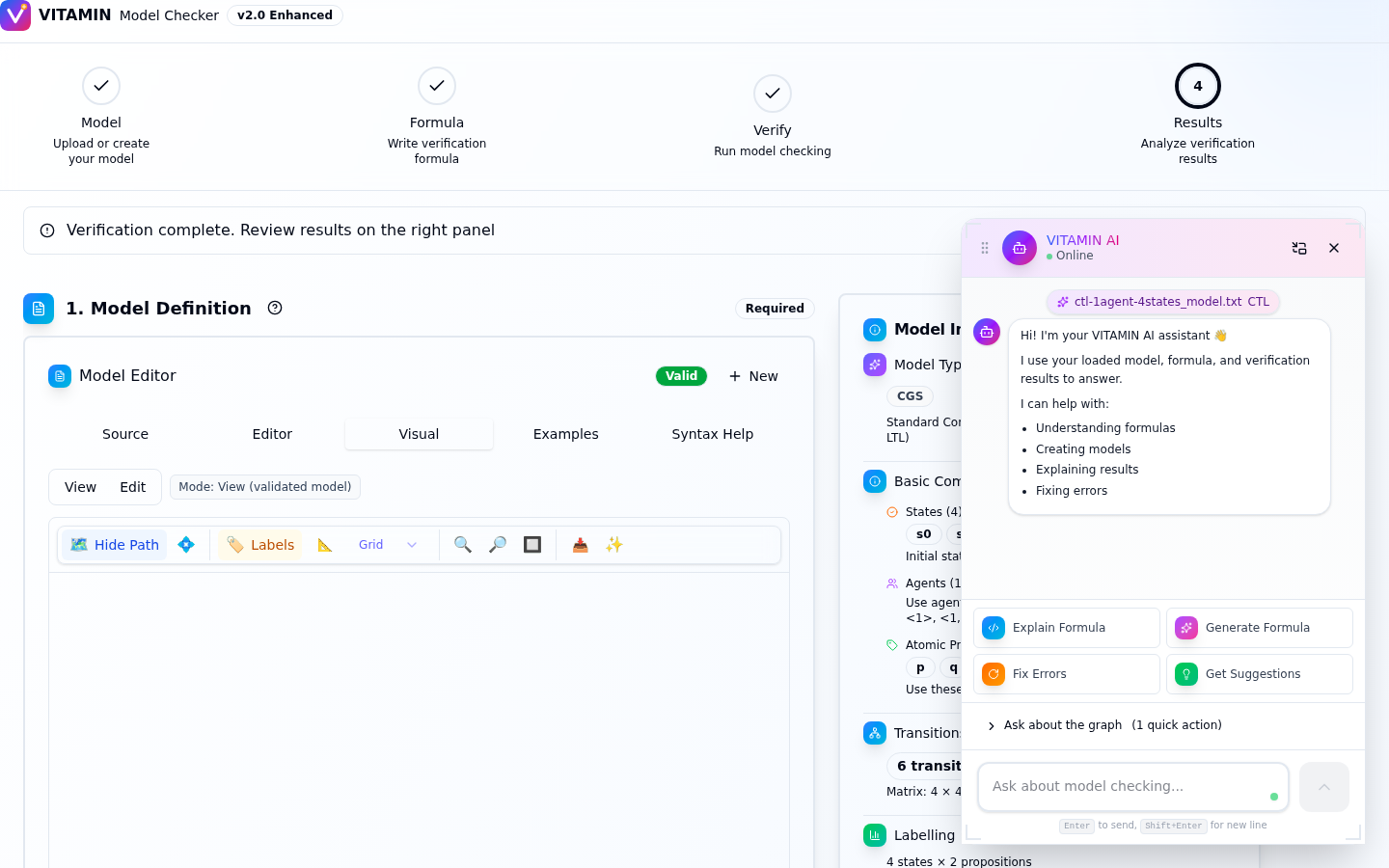
Click the floating robot button at the bottom right (tooltip "Ask AI Assistant"). The panel is draggable and resizable; the first button at the top right of its header ("Reset to default position") puts it back in place. Close it with the X button ("Close") next to it, and the floating button returns.
What you can do
Type a question in the input at the bottom (Enter to send, Shift+Enter for a new line).
Quick actions, shown when the chat is new:
- Explain Formula: explain the meaning of your formula in the selected logic.
- Generate Formula: produce a template formula using your model and logic.
- Fix Errors: help with validation errors.
- Get Suggestions: offer ideas based on the model, formula and results.
Questions about the graph, shown when the data is available:
- Explain this state: the state selected on Visual.
- Explain this path: a path built with Shift+click.
- Explain witness or Explain coalition strategy: a satisfying trace is loaded. A witness is a run of the model showing that the formula holds; the coalition is the group of agents named in the formula, such as
<1,2>. - Explain counterexample or Explain counterexample strategy: a failing trace is loaded. A counterexample is a run showing that the formula fails.
Suggested question chips appear only when the matching trace or selection exists.
You can also start from elsewhere:
- From the editors: select text and use Ask AI, or click Ask AI next to a validation error.
- From Visual: Ask AI on the graph toolbar, or Ask AI in node or edge details.
- From the Strategy card of an ATL* result: Ask AI to explain this strategy (see Strategy for ATL*).
What the explanations are based on
The assistant gets these facts from VITAMIN itself, so it does not have to guess them:
- Formulas: the server parses the formula and passes its structure (which operator applies to which part) to the assistant. This holds for every logic except
ATL*, NatSL and TCTL, where the assistant reads only the formula text, so explanations of nested operators are less reliable there. See Verification Formula for the logics. - States: for a selected state, a selected path or a trace, the propositions true in each state are taken from the Labelling section of your model.
- Traces: only CTL returns a trace from the verification. For other logics, and for a CTL result without a trace, the app finds a path on the graph itself, to a state where the formula fails (or holds). The assistant then describes it as a path found by the app, not as the verification's counterexample or witness.
- Results: the assistant also gets the satisfying and non-satisfying states from the result, for ATLF the value of the formula in each state and the degree of each label, and, for a CTL trace that repeats forever, the state where its loop starts.
Editor buttons outside the chat
Two buttons sit below the editors and show their answer there, not in the chat panel. Each is enabled only when the editor's validation shows no errors, and both are hidden when AI is turned off. The answer is not kept in the chat history; close it with the X button ("Close AI answer") in its corner. Editing the formula, the logic or the model hides an answer about the earlier text.
- Suggest improvements (Formula editor): ideas to simplify or clarify your formula in the selected logic.
- Optimize model (Model editor): redundant states or transitions and unused propositions, based only on your model text, not on the formula or results.
The answer appears when it is complete; the page stops waiting after 5 minutes and shows an error. The answer comes from a language model and can be wrong: check each suggestion against your model before you apply it.
Chat behavior
Responses stream in word by word as the server sends them (editor button answers appear only when complete). Hover a message to show its Copy button.
Reset Session (in Execute Verification) clears the chat so old model or result context is not reused. Reloading the page or opening the app in another tab also starts a new conversation: the assistant does not recall earlier messages that are no longer on screen.
The dot at the right edge of the chat input shows the connection: green when connected, red when disconnected. If it is red, reload the page. See Troubleshooting.