Execute Verification
Execute Verification (center bottom) is step 3: run the checker once you have a valid model from Model Definition and a valid formula from Verification Formula. The outcome appears in Verification Results.
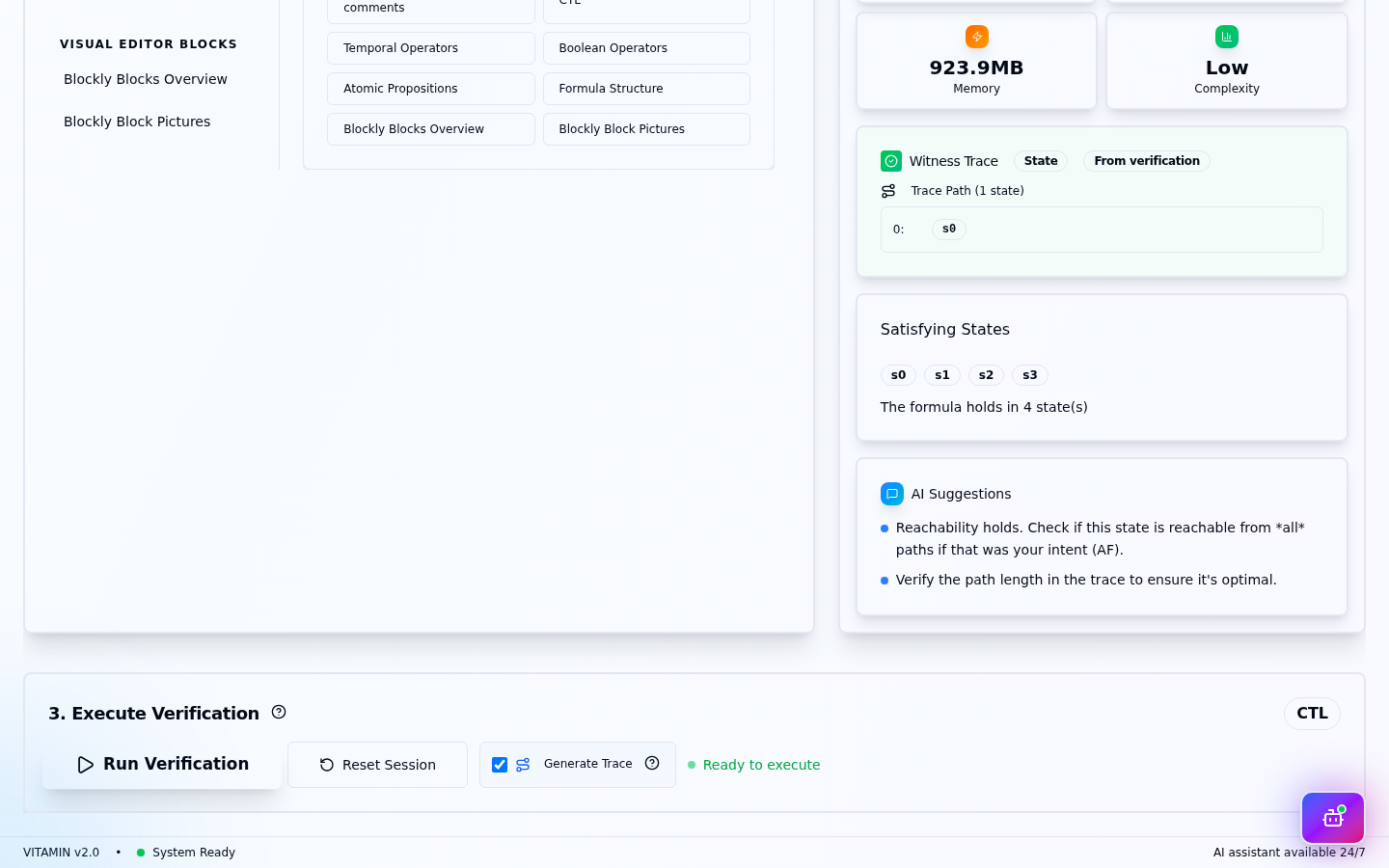
Controls
Run Verification sends the current model and formula to the backend with the selected logic. The control is enabled only when both inputs exist and pass validation. Several formulas in the editor run as a batch, one after another in the order written.
While running, the button shows Verifying... and a progress bar with "Checking model against formula...". A second click within 2 s of the previous one is ignored, so a double click starts only one run.
Reset Session clears the model, formula, verification results and trace. It also resets the AI chat. It is disabled while a run is in progress. It differs from Reset Workbench on the Source tab of Model Definition, which does not reset the AI chat.
Generate Trace requests a trace, a run of the model that explains the result:
- A witness when the formula is satisfied: a run showing that it holds.
- A counterexample when it is not satisfied: a run showing that it fails.
Only CTL returns a trace. For the other 18 logics the Generate Trace checkbox is disabled and shows a badge with the logic name and "Coming Soon", such as "ATL - Coming Soon". The server lists the logics that return a trace at GET /api/v1/model-checking/trace-capabilities.
For the strategy logics, the logics whose formulas quantify over agents' strategies (ATL, ATLF, NatATL, NatATL_Recall, NatATLF, NatSL, OATL, COTL, CapATL, RABATL and RBATL), the app always sends the trace request, whatever the checkbox shows. These runs therefore use the time limit for runs with a trace (next section).
Time limit
The server stops a check that runs longer than its time limit, and the results then show a failure. Try a smaller model or a simpler formula. The operator who runs the server sets the limit, so it differs between installations. A server with no limit set uses 1800 s (30 min) for both a check and a run with a trace.
The same limit applies to the whole request, so a batch must also finish within it. The browser waits up to 30 minutes for an answer. Operators set the limits with MODEL_CHECKER_TIMEOUT and MODEL_CHECKER_TRACE_TIMEOUT, described in docs/operations/configuration-reference.md (section "Model checker") in the repository; that page is not on this site.
Prerequisites
When Run Verification is disabled, a checklist shows what is missing:
- Model file: checked when model text is present in Model Definition.
- Verification formula: checked when formula text is present.
The button stays disabled until both items are complete and both pass validation (valid syntax).
- When ready, a Ready to execute indicator appears.
- If you edit the model or formula and validation fails, the button disables again.
Logic badge
The card header shows the active logic, the same one as in the formula logic dropdown. Confirm it matches your formula and model type before you run.
After a run, open Verification Results for the outcome. Use Show Path on the model Visual tab to overlay the trace on the graph; see Visual Graph.