Introduction
VITAMIN is a web-based model checker for multi-agent systems. You describe a system (the model), write a property to check (the formula), and run verification to see whether the property holds. This page gives the screen layout and a quick workflow; each panel has its own page, starting with Model Definition, and Troubleshooting covers common problems.
What VITAMIN does
The workbench covers the whole loop, from writing a model to reading the result on a graph:
- Modeling: write models as text or draw them on the Visual graph. Nine model types are supported: CGS (concurrent game structure: states, agents and transitions labelled with the agents' joint actions), fuzzyCGS (a CGS whose labels lie in [0,1], for ATLF), costCGS, capCGS, WalletCGS, timedCGS, BCGS, BirelationalMatrix and ObstructionModel.
- Logics: 19 logics backed by the checker. The list, with the model type each logic runs on, is in Supported logics.
- Visual formulas: build formulas in Blockly, a drag-and-drop block editor.
- AI Assistant: get help with errors, formulas and results when the AI assistant is enabled on the server.
- Results: see a trace (a run of the model that shows why the formula holds or fails) on the graph, inspect metrics, and export PDF, JSON or LaTeX.
Welcome screen
When you open VITAMIN, it shows a welcome screen before the workbench. If you were already in the workbench in the same browser tab, reloading the page takes you back to the workbench instead.
- Start new project: opens an empty workbench with ATL selected.
- Documentation: opens this guide in a new tab.
- How it works: the four steps of a check (model, formula, run, results).
- Start with an example: bundled examples grouped by logic, with a filter by difficulty. Click Load example on a card to open the workbench with that model and formula.
In the workbench, click the VITAMIN logo at the top left to go back to the welcome screen. This clears the model, formula and results.
Page layout
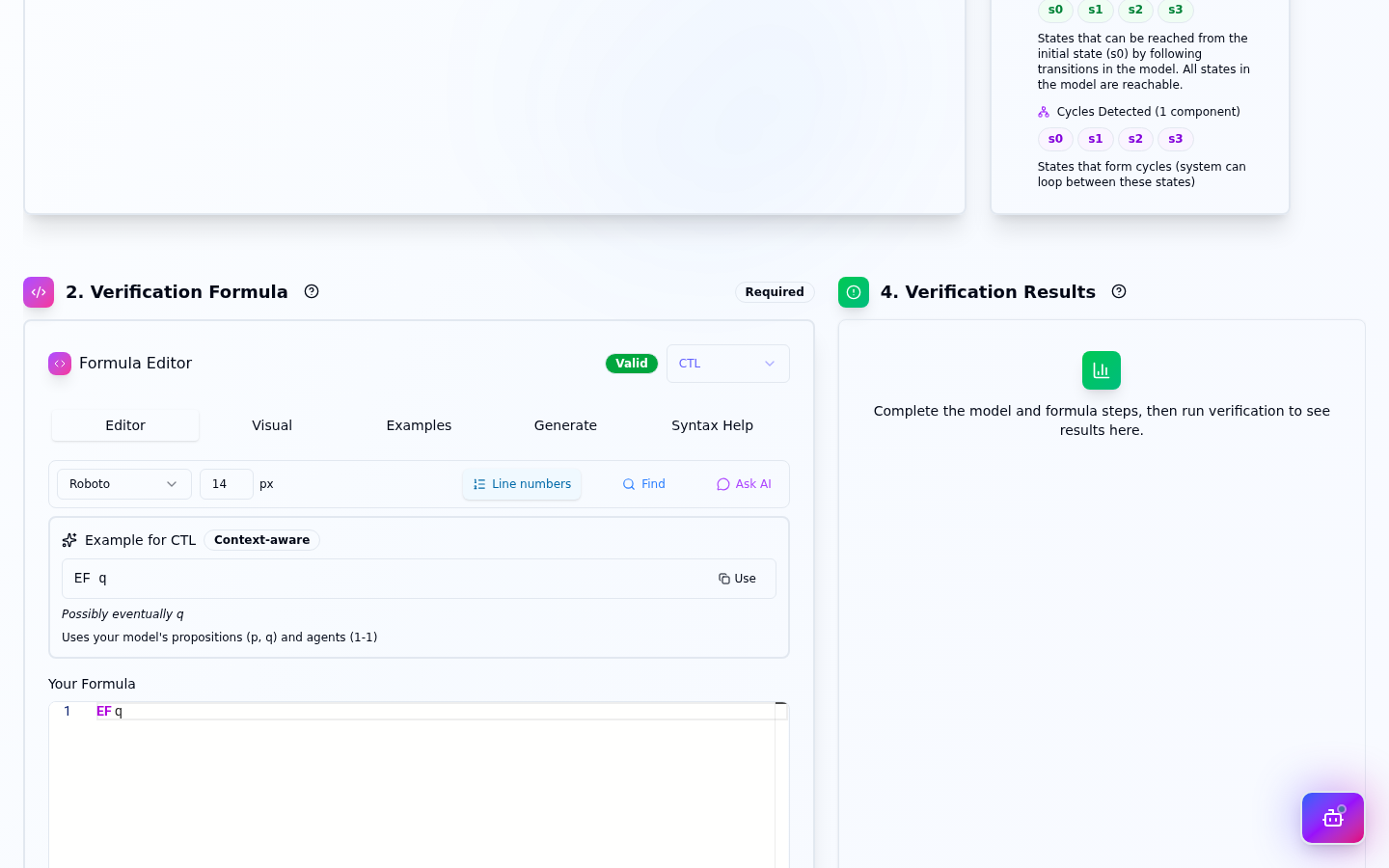
The main screen has five areas:
| Area | Location | Description |
|---|---|---|
| Model Definition | Top left | Load, edit or draw your model. Tabs: Source, Editor, Visual, Examples, Syntax Help. |
| Verification Formula | Bottom left | Pick a logic and enter your formula (text, Blockly, examples or AI generate). |
| Execute Verification | Center bottom | Run verification, reset the session and request a trace. |
| Model Information | Top right | Parsed model summary: states, agents, propositions, compatible logics. |
| Verification Results | Bottom right | Outcome, metrics, traces and export. |
The AI Assistant opens from the floating button at the bottom right. It uses your current model, formula and results as context.
Quick workflow
- Model: in Model Definition, upload a file on Source, load an example on Examples, or draw on Visual.
- Formula: in Verification Formula, select a logic and enter the property in Editor or Visual.
- Run: click Run Verification in Execute Verification.
- Review: open Verification Results, then use Show Path on the model Visual tab to see the witness or counterexample on the graph.