Model Definition
The Model Definition area (top left) is where you create or load the model that VITAMIN will check. A model lists states, transitions, agents, atomic propositions and, for cost or capacity models, costs or capacities. The Visual Graph page covers the graph tab in detail, and the formula comes next in Verification Formula.
The area has five tabs: Source, Editor, Visual, Examples and Syntax Help. The header shows Valid or Invalid after the backend parses your text. Use New in the header to start a blank model.
Source (Project Source)
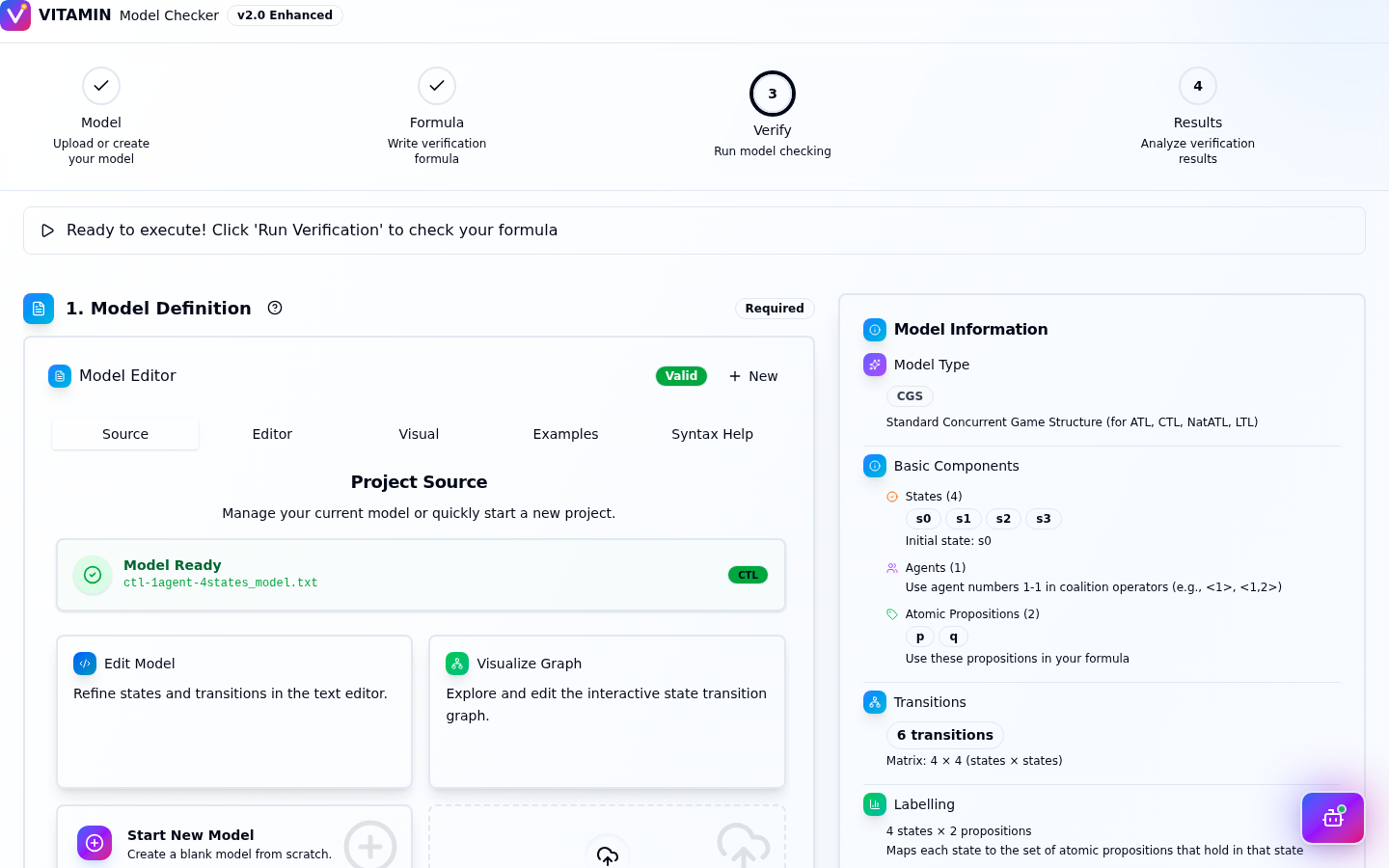
Use this tab to start a session or switch models.
With no model loaded yet:
- Start New Model: pick a starting logic shortcut (ATL, CTL, LTL or CapATL), then click Create Blank. This sets the workbench context and opens an empty Editor. Your model text must match the model type you need; the full logic list appears in Verification Formula after the model validates.
- Upload File: drag and drop a
.txtfile or click to browse. The file opens in Editor and validation runs immediately.
With a model already loaded:
- Edit Model: opens Editor.
- Visualize Graph: opens Visual (when the model is valid and drawable).
- Start New Model or Upload File: replace the current model.
- Reset Workbench: asks you to confirm when the editor has text or the graph has unapplied edits, then clears the model, formulas and results and opens an empty Editor with the current logic. It does not reset the AI chat; Reset Session in Execute Verification does. Nothing is deleted on disk; use Download in the editor toolbar to save the text first.
Editor
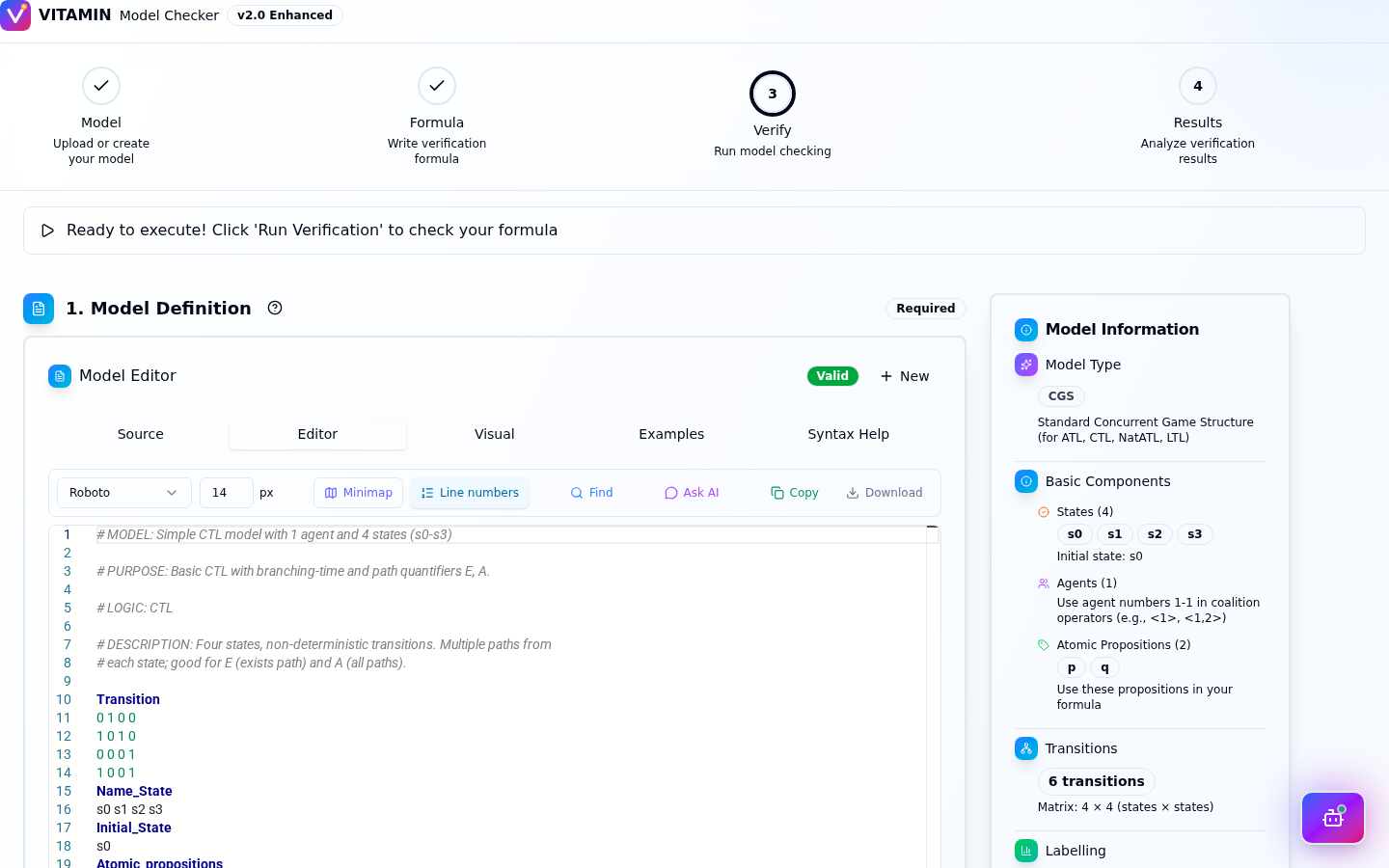
Write or edit model text here.
The editor highlights section names (Transition, Name_State, Initial_State), numbers, and comments (# or //). It supports CGS, fuzzyCGS, costCGS, capCGS, WalletCGS, timedCGS, BCGS, BirelationalMatrix and ObstructionModel syntax. CGS (concurrent game structure) is the base type: states, agents and transitions labelled with the agents' joint actions; the other types add sections such as costs, capacities, wallets, clocks or demons. A fuzzyCGS adds no section: it is a CGS file whose Labelling may hold values between 0 and 1, such as 0.5. Nothing else marks it: with ATLF selected, a model with a label that is neither 0 nor 1 is a fuzzyCGS.
Autocomplete: press Ctrl+Space for section names and a comment snippet. Suggestions depend on the detected model type. Comments must be on their own line; inline comments on data lines cause parse errors.
Validation runs about one second after you stop typing. Results appear in the header badge and in the panel below the editor:
- Valid models show state, agent and transition counts.
- Invalid models show error messages and red underlines in the editor.
- Each error has an Ask AI button (when the AI assistant is available) to open the assistant with that error.
Agent labels are optional. After Number_of_agents, add an Agent_labels section:
- One whitespace-separated display name per agent (example for two agents:
Tianji Opponent). - Labels appear only in the graph and in the Model Information panel, the parsed model summary at the top right.
- Formulas still use agent numbers, such as
<1>and<2>. - Each label must match
[a-zA-Z0-9_-]+. - When omitted, agents are shown as
1,2and so on.
The toolbar has font family, font size, line numbers, find and replace (Ctrl+F), Copy, Download, and Ask AI on selected text.
For full syntax rules, use the Syntax Help tab.
Visual
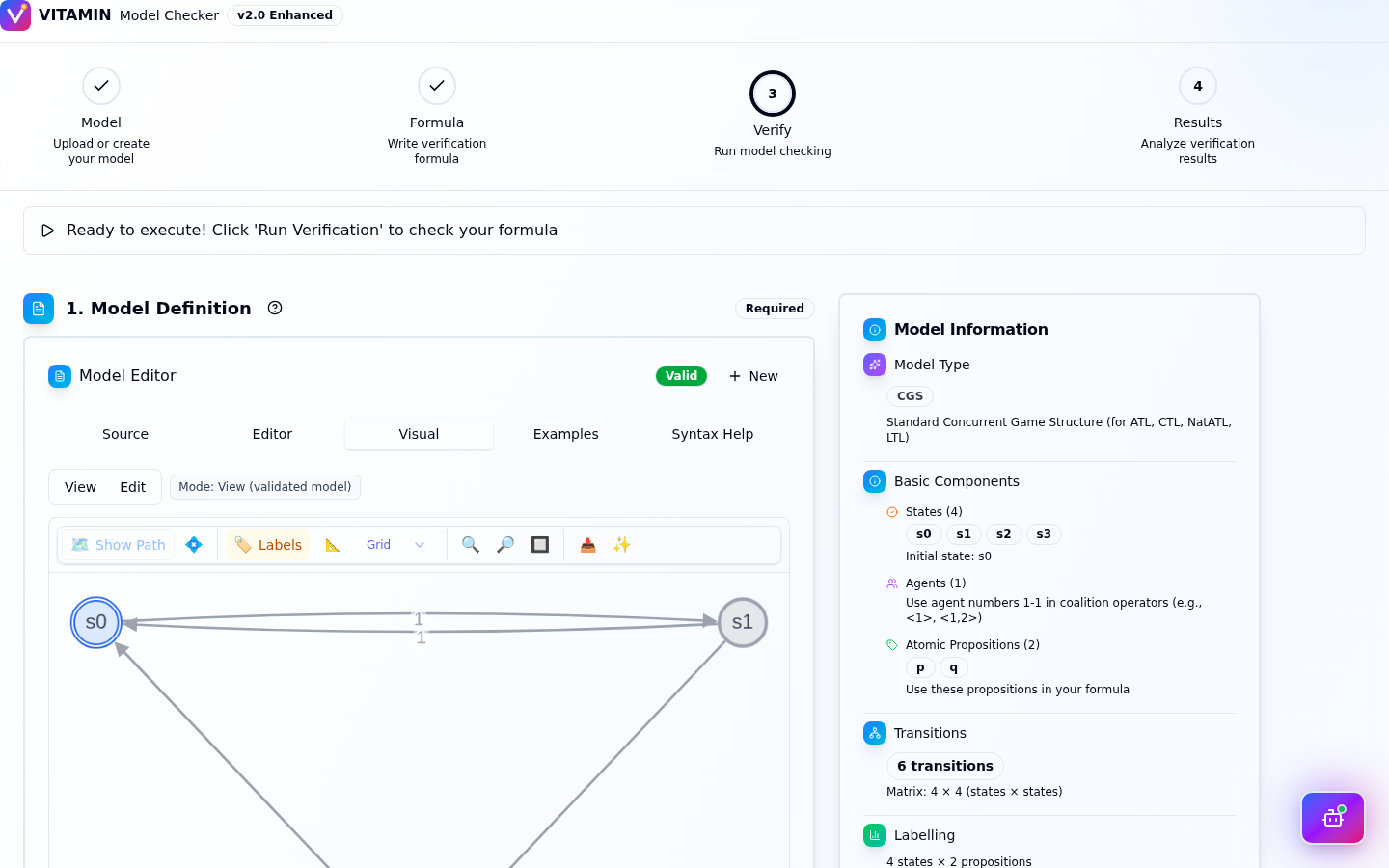
The Visual tab shows the model as a graph (nodes are states, edges are transitions). Toggle View and Edit at the top of the tab.
- View: read-only graph with layout, labels, path overlay and export.
- Edit: graph designer; click Apply to Text to write changes back to the editor.
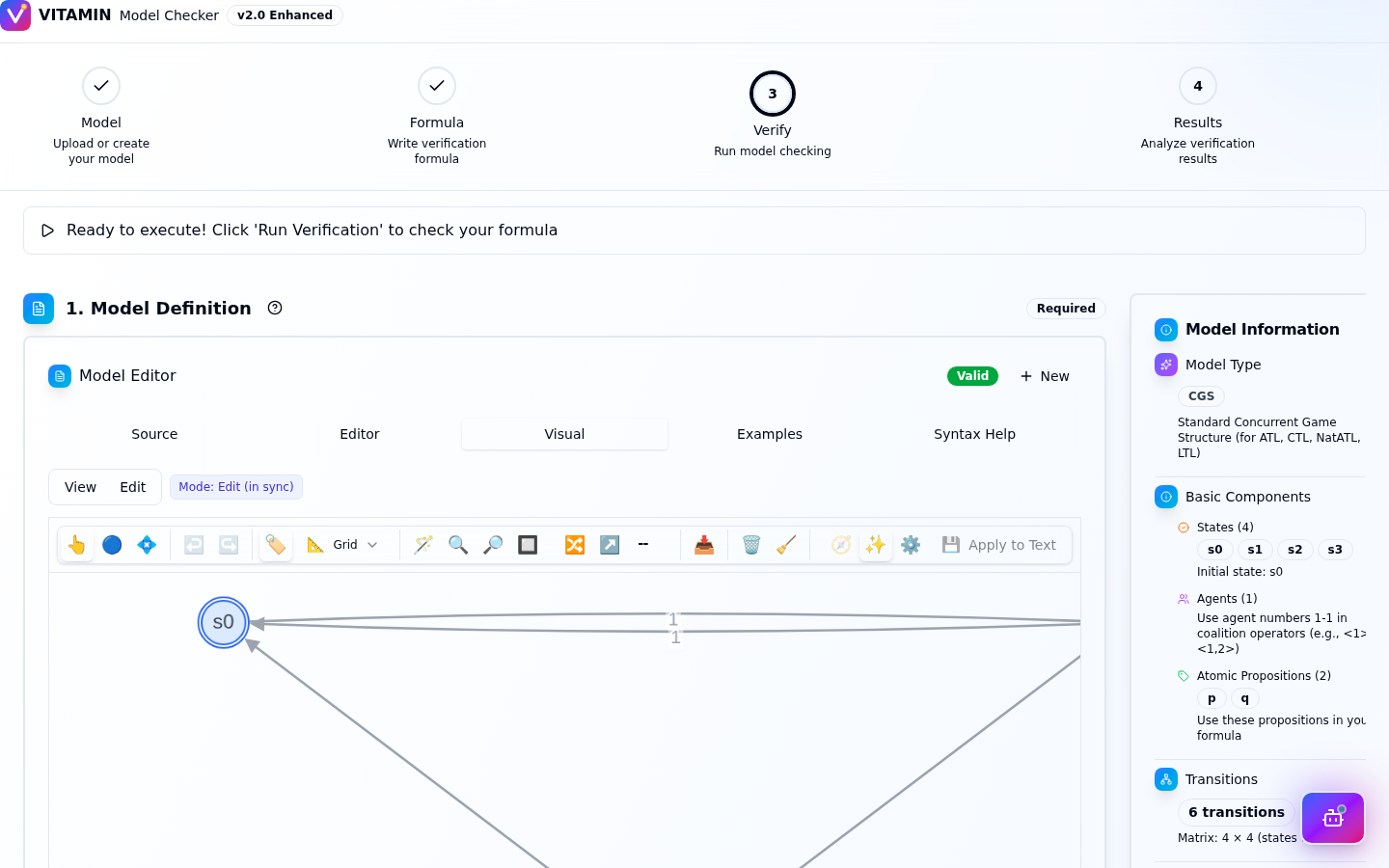
The graph is available once the model has at least one state.
For toolbar details, keyboard shortcuts, path selection and traces, see Visual Graph.
Examples
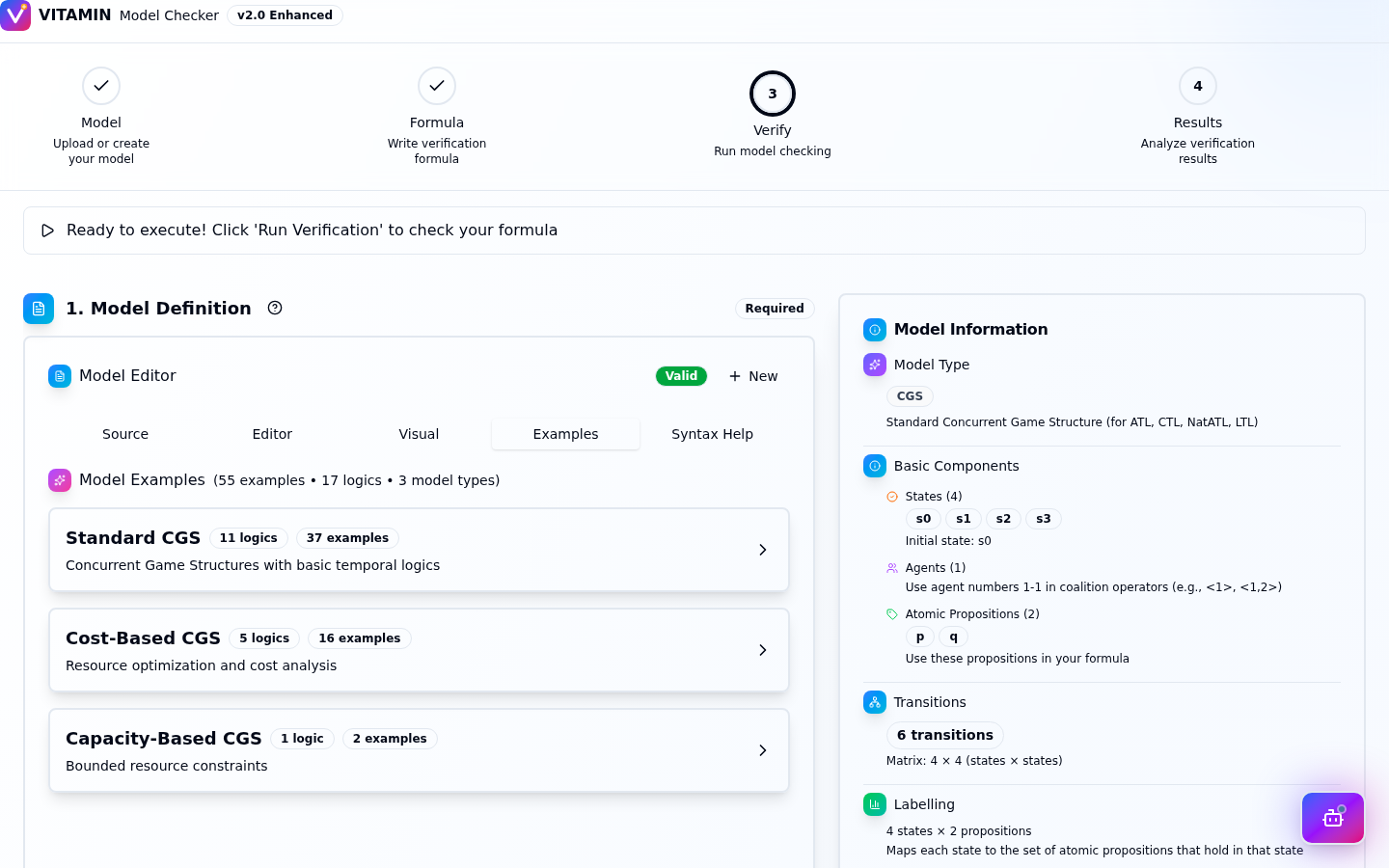
Ready-made models are grouped by model type (Standard CGS, Cost-Based CGS, Capacity-Based CGS, Wallet CGS, Timed CGS, BCGS, Birelational Matrix and Obstruction Model), then by logic. The logics of each model type are in Supported logics. Expand a group and click Load Example on a card.
Loading an example fills the editor, sets the formula logic when the example defines one, and clears the current formula and results. The Model Information panel updates after validation.
Loading another example overwrites the editor. When the editor already holds text, the first click on Load Example turns the button red with "Confirm Overwrite?"; click it again within 3 s to load. With an empty editor, one click loads.
Syntax Help
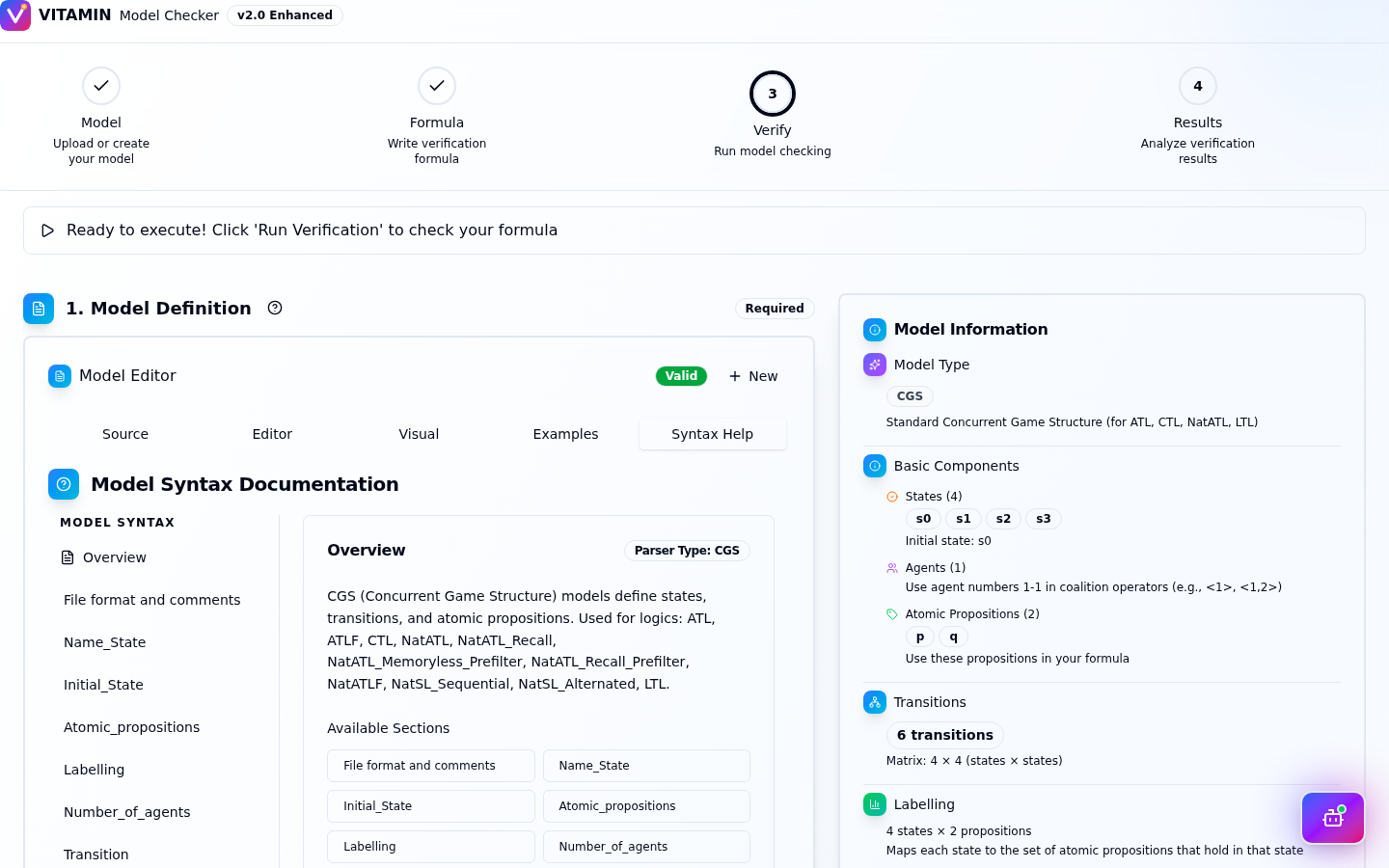
Reference for the model text format. The content follows the parser type, which is the model type the backend reported when it last validated your text (from its sections, or for fuzzyCGS from the selected logic ATLF and a label other than 0 and 1): CGS, fuzzyCGS, costCGS, capCGS, WalletCGS, timedCGS, BCGS, BirelationalMatrix or ObstructionModel.
Use the left list to open Overview or a section (for example Transition, Name_State). The right pane shows rules and examples. Before the first successful validation, you may see default CGS docs or a prompt to load a model.
Next steps
When the model is Valid, check Model Information on the right, then go to Verification Formula to write a property and run verification.