Troubleshooting
Common Workbench issues and steps to try. The panels named here are described in the Introduction.
Red underlines in the editor
Syntax or validation errors in the model or formula editor. Hover the underline or read the message below the editor, then fix the reported line or symbol. Click Ask AI next to an error when the AI assistant is available.
"Formula not satisfied" in results
A NOT SATISFIED badge is a valid answer: the check finished and the formula does not hold in the model. Nothing needs fixing unless you expected it to hold. For a CTL formula, run again with Generate Trace on to get a counterexample that shows why.
"Verification Failed" in results
A FAILED badge means the run did not finish: server error, timeout or invalid input. Open Details in Verification Results and check Raw Verification Output for the error. Then check the usual causes:
- The logic does not match the model type. Model Information (the panel at the top right) lists the compatible logics.
- The run hit the server's time limit (section "Time limit" in Execute Verification).
Run Verification is disabled
The Execute Verification panel lists prerequisites:
- Model file: needs non-empty model text that validates.
- Verification formula: needs non-empty formula text that validates.
Both must pass validation before Run Verification enables. Fix red underlines and error messages in the editors first.
Connection or server errors
Verification and the AI assistant need a working connection to the VITAMIN server. The UI has no sign-in, and the header holds only the VITAMIN logo and a version badge, with no connection light.
- The AI chat input has a small dot at its right edge: green means the chat is connected, red means it is disconnected (hover it to read "Connected" or "Disconnected"). The green dot on the floating AI button and the Online label in the chat panel header stay green whatever the connection state, so only the dot in the chat input tells you whether the chat is connected.
- Refresh the page.
- Contact your operator if the problem continues.
Logic variants
Unexpected results or syntax errors often come from picking the wrong logic for the model type. Each logic has one primary model type (see Supported logics), and Model Information lists the logics that fit the loaded model. Logics in one family can share a syntax but not a meaning: NatATL and NatATL_Recall accept the same formulas but evaluate them over different kinds of strategies. The syntax of each logic is in Formula syntax.
AI Assistant or Generate not working
- Other features work without AI: reload the page and check the dot in the AI chat input (see Connection or server errors).
- Generate works from a description alone, and uses your model's propositions when a model is loaded.
- If AI is disabled on the server, contact your operator.
Multi-formula (batch) errors
- End each formula with
;(the last may omit it), with at most one;per line. phi1; phi2on one line fails validation.- Labels (
Label: formula;) must be unique in the batch.
More rules are in Batch verification.
Trace or Show Path not available
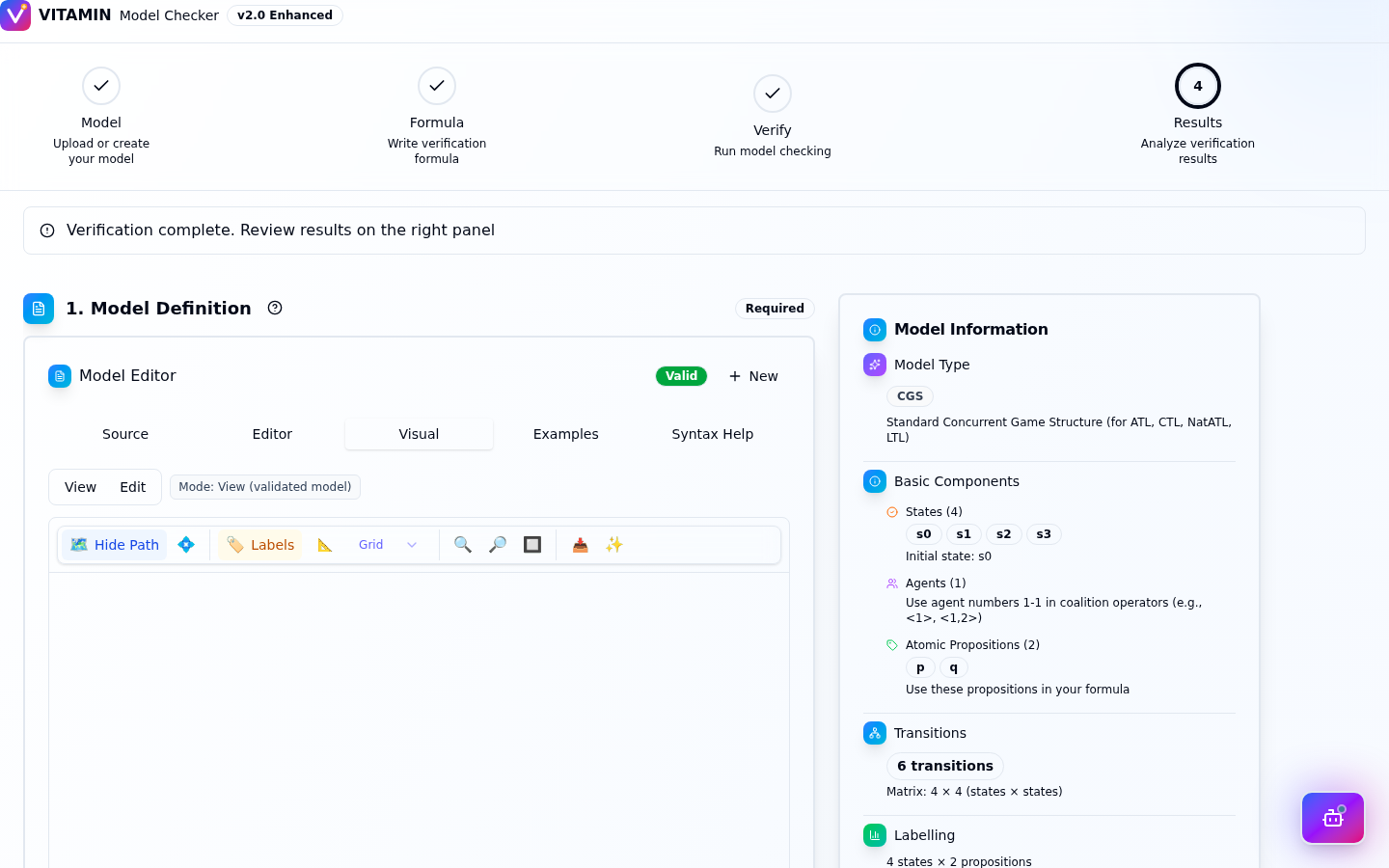
- Only CTL returns a trace: turn on Generate Trace before running a CTL formula.
- Show Path works only after a run that returned a trace.
- For the other logics the checkbox is disabled and shows a "Coming Soon" badge.